Dev note ·
Configuration that operators can actually use
MCP Connect and Audit & Ops move into the main pane. Copy, uninstall, and filter without curl or a cramped sidebar.
Sprint 111 makes Configuration usable day to day
- CONFIGURATION
- MCP
This sprint
Connect, Marketplace, and Audit shipped as thin Configuration blades: enough API and UI to prove the contract, not enough chrome for day-to-day admin work.
Empty catalogs stuck on “Loading…”. The MCP URL, stdio snippet, and minted PAT were text-only. Marketplace uninstall meant curl. Audit filters lagged the API. Ops peek was a raw JSON dump. Heavy blades sat in a narrow sidebar while Crane already had a main perspective.
Sprint 111 ships thin Configuration frontend polish: make MCP Connect / Marketplace aisle and Audit & Ops usable without inventing a web job launcher, a deep Crane IDE, or a new backend.
What moved
| Before | After |
|---|---|
| Empty list stuck on “Loading…” | Distinct loading / empty / error states |
| HTTP URL, stdio, minted PAT — text only | One-click Copy |
| Marketplace Install only in the UI | Thin Uninstall plus pack-kind chips (Provider / Skill Pack / Knowledge Pack) |
| Audit filters: type / actor | Also request id and time range; row detail expand |
| Ops peek = raw JSON | Structured license / bootstrap / Crane Auto-Sync summary |
| Connect + Audit in sidebar scroll | Main-pane Configuration host (Crane-style) |
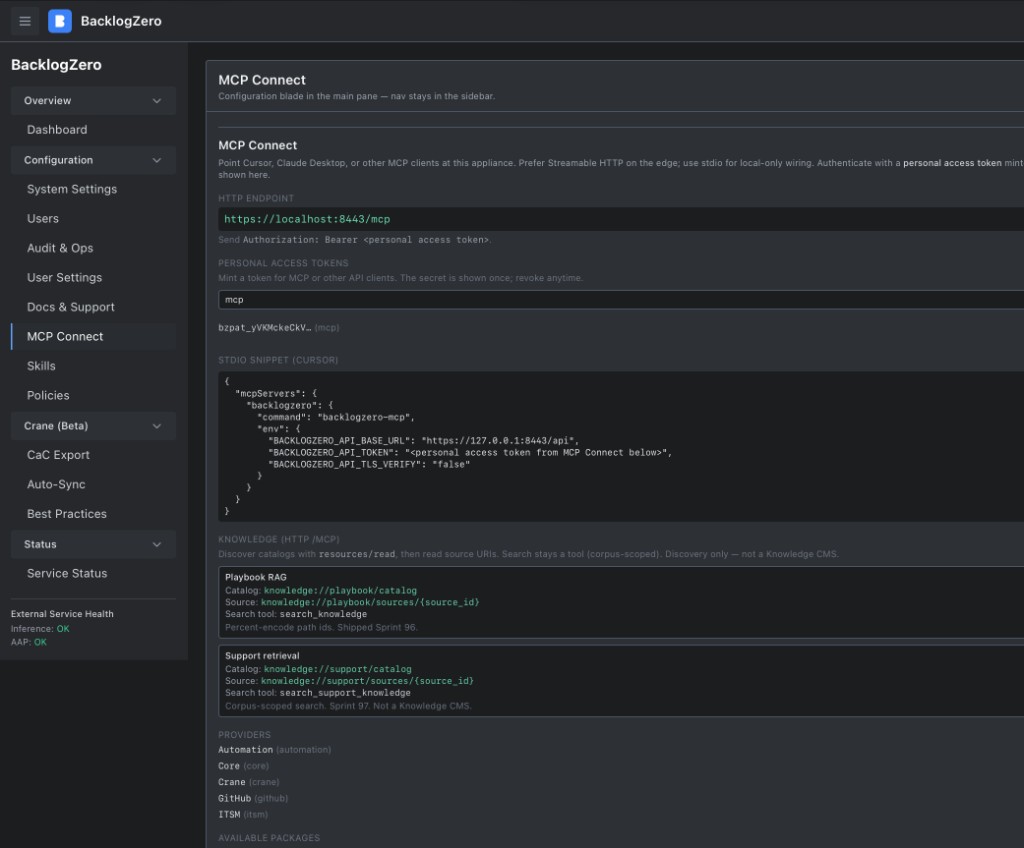
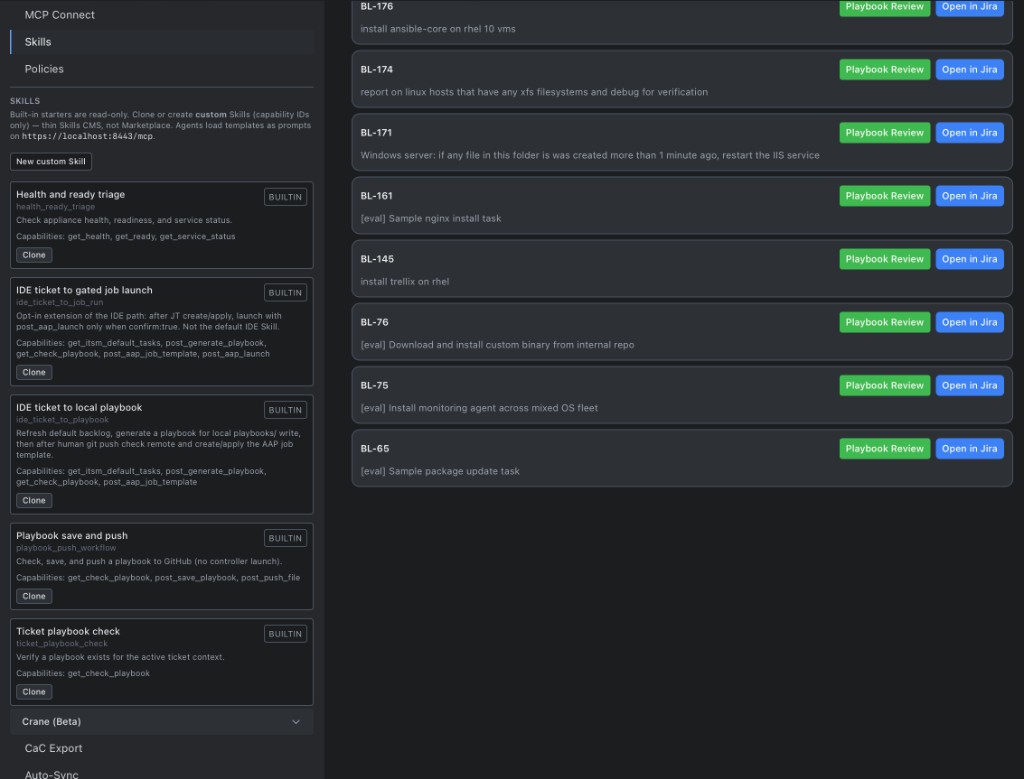
Nav stays in the sidebar. MCP Connect occupies the main pane (screenshot above). Skills and Policies use the same chrome but stay sidebar blades — the ticket list remains in view on purpose:
Still open
On purpose, this slice does not add:
- A web UI for gated job launch (that stays MCP)
- A deep Crane IDE
- HTTP remote artifact fetch or a hosted Marketplace CDN
- A second Marketplace product or a SQL console
Uninstall and audit filters ride the APIs that were already there.
For customers
- Administrators can mint a token, copy the MCP URL, install or uninstall a pack, and filter audit by request id — without shell access or fighting empty-state bugs.
- Support gets a structured ops peek and exportable audit filters instead of scrolling a sidebar JSON blob.
- Operators still clone Skills from the sidebar; that surface was not promoted to a main-pane host this sprint.
Sprints 108–110 taught the appliance to expose Connect, Marketplace, and Audit. This sprint teaches operators to use them.
Signed-in tour: UI features. PAT and transport: MCP quickstart.
Try it (about five minutes)
Goal: copy MCP connect details, uninstall a pack if present, filter audit by request id, expand detail, and open structured ops peek. Sign in as a BacklogZero Administrator.
1. Configuration → MCP Connect
The panel should open in the main pane. Empty catalogs should say there are no packages (not “Loading…”). Click Copy next to the HTTP URL and stdio snippet.
2. Marketplace aisle
If a pack is installed, use Uninstall. Confirm the pack-kind chip (Provider / Skill Pack / Knowledge Pack).
3. Configuration → Audit & Ops
The main pane should switch to Audit & Ops. Set request id or a time range; apply filters. Expand a row. Toggle Ops peek and confirm structured license / bootstrap / Crane Auto-Sync fields (not only raw JSON).
4. Light theme
Switch to light theme. Connect / Audit chrome should stay readable.
Available to customers
Included for current subscribers running the latest bundle.
Subscribe for updates
Get an email whenever we publish new guides and blog posts. Unsubscribe anytime.
By subscribing you agree we may email you about Velocity and related Level Up Labs updates. We store your address in the same lead sheet as our contact form.